Published on Jan 01, 2026
How to Fix the Error Preview function failed: snap not found in BleachBit
BleachBit is known as a lightweight, free, and quite powerful system cleaning application for Linux. Its function is similar to CCleaner in Windows: cleaning caches, temporary files, logs, and even remnants of unused applications.
However, some Linux users—especially those using Ubuntu and its derivatives—have encountered a somewhat confusing error message:
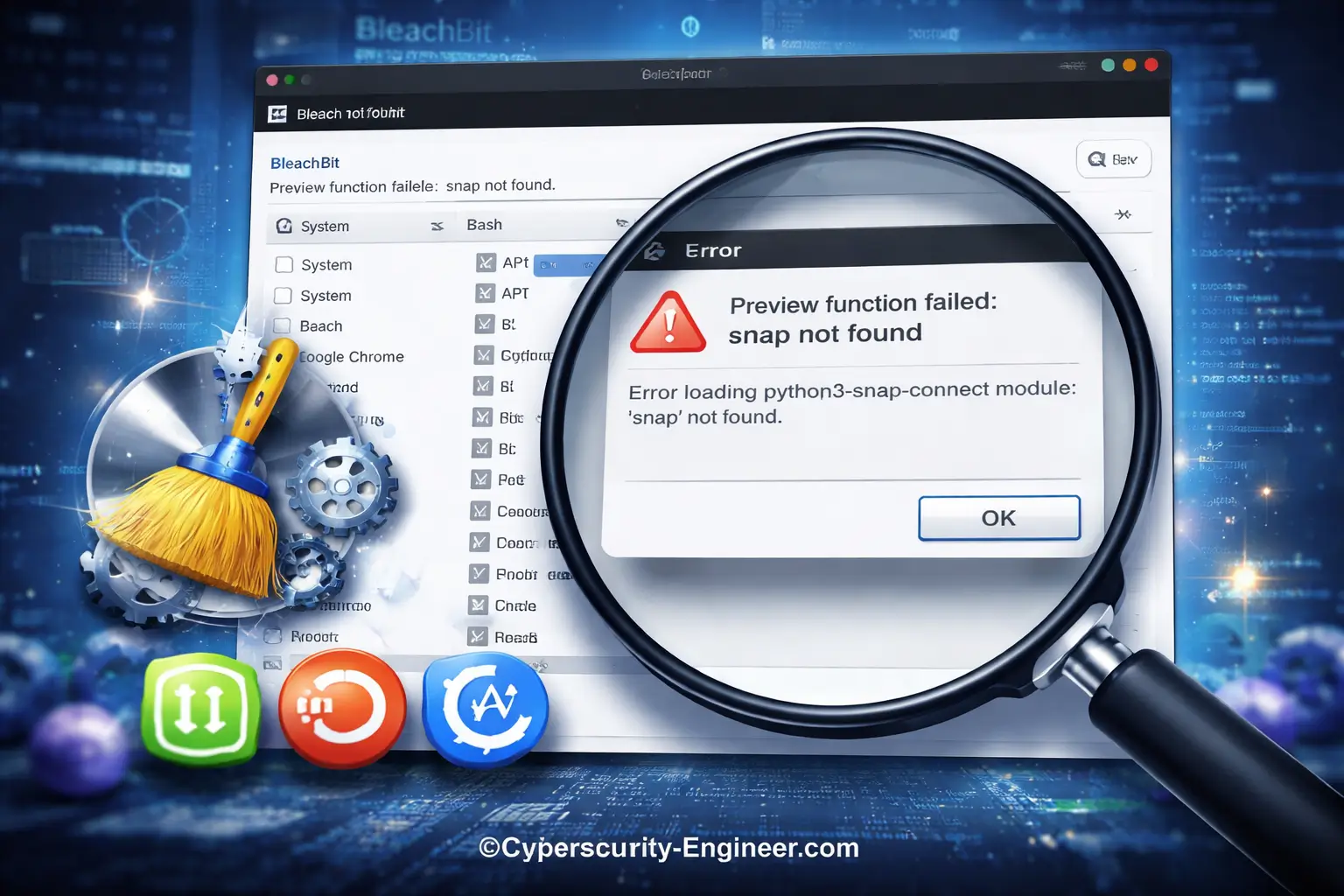
Preview function failed: snap not found
This error usually appears when we press the Preview button in BleachBit. Although it seems trivial, this message can raise doubts: “Is this a serious error or can it be ignored?” Well, in this article, we will thoroughly discuss the causes and how to fix it in a relaxed yet technical manner.
What is the “Preview function failed: snap not found” error?
Simply put, this error means that BleachBit is trying to run a command or function related to Snap, but your system cannot find the snap command.
BleachBit has a Preview feature that functions to:
- Display which files will be deleted
- Calculate the estimated disk space that can be freed
- Check data before actually wiping
When BleachBit is run, it will detect various types of application packages, including:
- APT / DEB
- Flatpak
- Snap
Problems arise when:
- BleachBit detects Snap support
- But on your system Snap is not installed, disabled, or has been removed
Finally, when the preview is run, a “snap not found” error appears.
Common Causes of This Error
Before we get to the solution, let’s first understand some of the most common causes:
1. Snapd Is Not Installed
Some Linux distributions don’t include Snap by default, or users intentionally remove it for a lighter system.
2. Snapd Was Manually Uninstalled
On Ubuntu Minimal, certain Linux Mint, or custom distributions, snapd is often removed with the apt purge snapd command.
3. A Newer Version of BleachBit Is Installed
Newer versions of BleachBit usually support clearing the Snap cache, so they automatically try to invoke the snap command.
4. The System PATH Doesn’t Recognize Snap
In rare cases, Snap is installed but the environment PATH doesn’t recognize the snap command.
Is This Error Dangerous?
The short answer: not dangerous.
This error:
- Doesn’t damage the system
- Doesn’t result in data loss
- Doesn’t cause serious crashes
Usually only impacts:
- The Preview function doesn’t work properly
- Snap cleanup information fails to display
If you don’t use Snap at all, this error is actually safe to ignore. But if you want a clean and error-free system, it’s certainly better to fix it.
How to Fix the Error “Preview function failed: snap not found”
Here are several solutions you can choose from, depending on your Linux system’s needs and preferences.
Solution 1: Install Snapd (Easiest)
If you don’t mind using Snap, the simplest solution is to install snapd.
For Ubuntu and derivatives:
sudo apt update
sudo apt install snapd
After that:
- Log out or restart the system
- Restart BleachBit
- Click Preview
Usually the error will be gone.
Advantages of this solution:
- Fast
- No need to change BleachBit configuration
Disadvantages:
- Adds Snap services to the system
- Not suitable for those who are anti-Snap
Solution 2: Disable Snap Cleaner in BleachBit
If you don’t use Snap at all, this solution is actually cleaner.
Steps:
- Open BleachBit
- Go to the Preferences menu
- Select the Cleaners or Advanced tab (depending on the version)
- Look for options related to Snap
- Uncheck:
- Snap cache
- Snap logs (if applicable)
After that:
- Close BleachBit
- Reopen it
- Try pressing Preview
Usually, the error will no longer appear.
Advantages of this solution:
- System remains lightweight
- No need to install Snap
Disadvantages:
- Cannot clear the Snap cache (if you use Snap later)
Solution 3: Install the Official Distro Repository Version of BleachBit
Sometimes this error appears because the latest version of BleachBit (e.g., from a PPA or Flatpak) is more aggressive in detecting Snap.
You can try:
- Remove the current version of BleachBit
- Install BleachBit from the official distro repository
Example:
sudo apt remove bleachbit
sudo apt install bleachbit
The repo version is usually:
- More stable
- More compatible with system configuration
Solution 4: Run BleachBit Without Preview
If you just want to clear the cache and don’t care about the preview, this solution is also valid.
Here’s how:
- Select the items you want to clean
- Click Clean directly without clicking Preview
BleachBit will still work normally, even if the preview error occurs.
Note: This solution does not fix the error, but avoids its effects.
Solution 5: Ensure Snap’s PATH is Detected (Rare Case)
If Snap is actually installed but BleachBit still displays an error, check with:
which snap
If nothing appears, there’s likely a problem with the PATH. Snap is generally found in:
/usr/bin/snap
This solution is rarely needed, but is useful for highly customized systems.
Which Solution is Most Recommended?
The recommendation is simple:
- Don’t use Snap at all → Disable the Snap cleaner in BleachBit
- Use the default Ubuntu / Snap application → Install
snapd - Minimal / server / lightweight system → Ignore errors or disable preview
There is no right or wrong solution; it all depends on your needs.
Additional Tips for Safe BleachBit Use
A few tips to make your BleachBit experience more enjoyable:
- Use Preview first (if possible)
- Don’t just check all options.
- Be careful with the following options:
- Free disk space
- System logs
- Run BleachBit as a regular user, not root, unless absolutely necessary.
BleachBit is powerful, but you still need to be careful when using it.
Conclusion
The “Preview function failed: snap not found” error in BleachBit isn’t a serious issue. This error appears because BleachBit is trying to invoke the Snap feature, but Snap isn’t available on your system.
The good news is, this error:
- Easy to fix
- Doesn’t damage your system
- Can be removed without reinstalling the OS
By choosing the appropriate solution, whether it’s installing Snap, disabling the Snap cleaner, or simply ignoring it, you can still use BleachBit safely and comfortably.
We hope this article helps you understand what’s really going on behind this error. Happy tinkering with Linux!